On this page
Point Editor: Edit Tactical Graphic Points
The sub-window of symbol.army to draw tactical graphics: add, move and delete their reference points.
Overview
Tactical Graphics — lines, areas, arrows, corridors — are defined by reference points. The Point Editor lets you shape a graphic by moving these points and, where the graphic allows it, by adding or removing points.
Open Editor
Click the Point Editor button in the bottom-right corner of the Main Window:
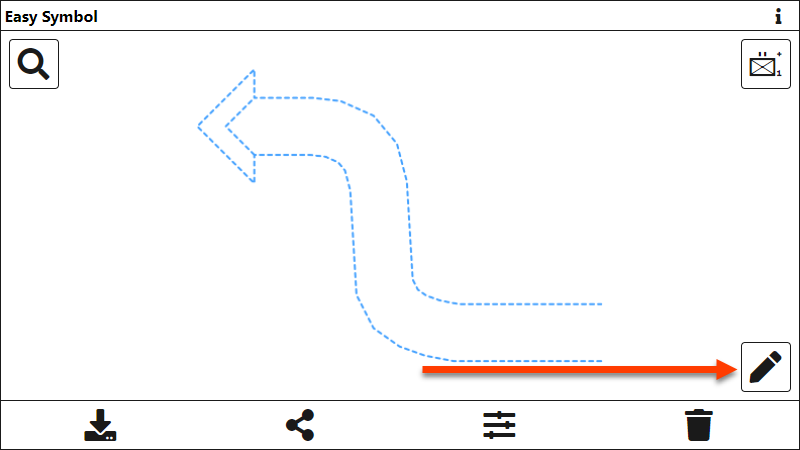
Layout
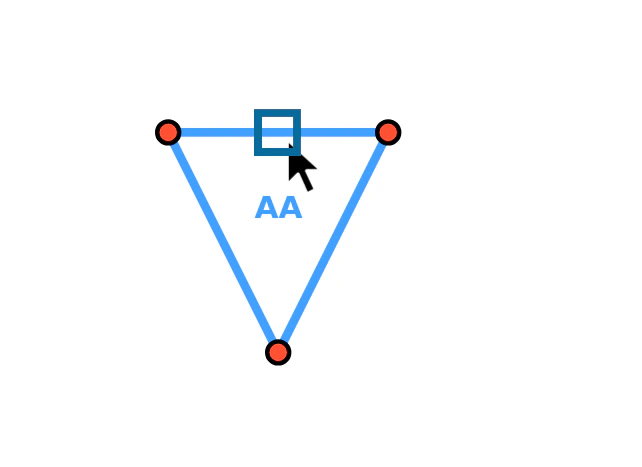
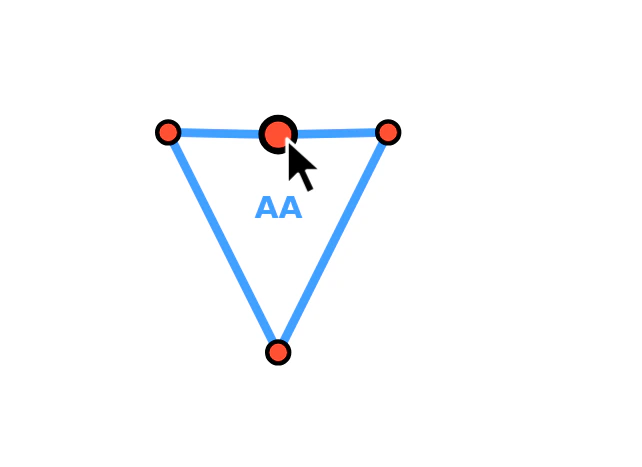
The Point Editor shows the graphic with a marker on every reference point. All point rules of the military symbology standard MIL-STD-2525 are respected: a graphic always keeps at least its minimum number of points, and graphics with a fixed number of points cannot get more or fewer.
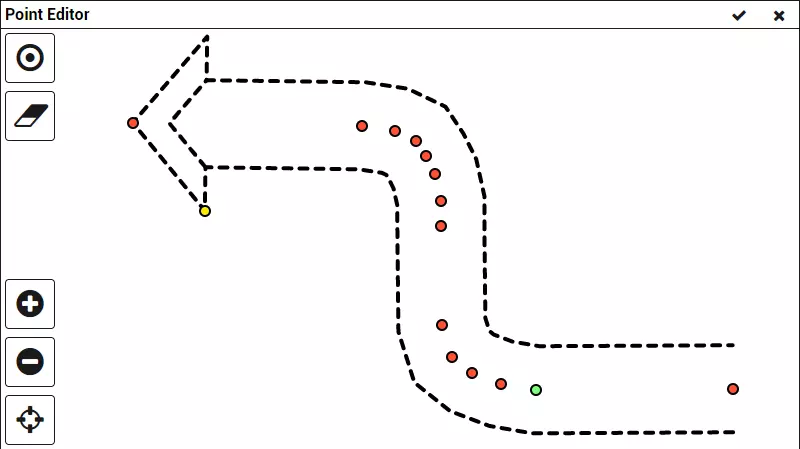
Move Points and Graphic
| Action | Result |
|---|---|
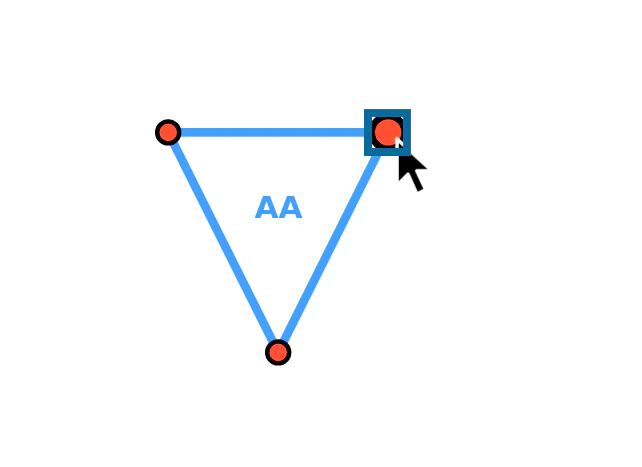
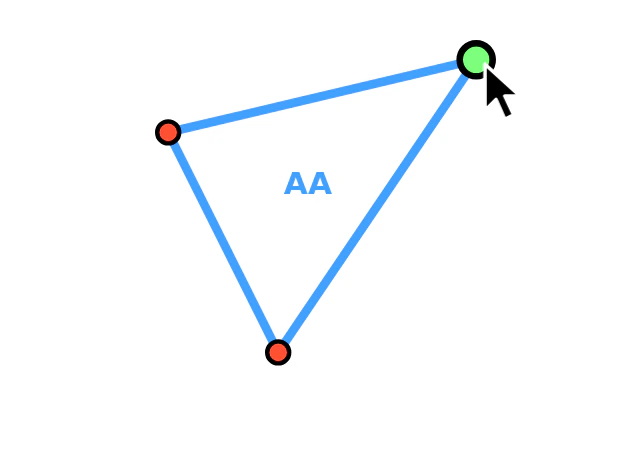
| Drag a point marker | Moves this reference point |
| Drag the graphic between the markers | Moves the whole graphic |
On a touch screen the markers are shown larger, so that they are easier to hit with a finger.
Functions
The buttons are available depending on the rules of the selected graphic:
| Icon | Function | Description |
|---|---|---|
 | Insert New Point | Switches on the insert mode: every click on the graphic adds a new point there. Click the button again to switch the mode off. Not available for graphics with a fixed number of points. |
 | Delete Point | Switches on the delete mode: every click on a point marker removes this point. Not available once the graphic has its minimum number of points. |
 | Zoom In | Enlarges the graphic. |
 | Zoom Out | Reduces the graphic. |
 | Center the Graphic | Moves the graphic back to the centre of the editor. |
Keyboard
Instead of the buttons you can hold a key while you click:
| Key held | Mode |
|---|---|
Ctrl | Insert: a click on the graphic adds a point |
Shift | Delete: a click on a point marker removes it |
The mode lasts as long as the key is held. If both keys are held, Shift (delete) wins.
Close Editor
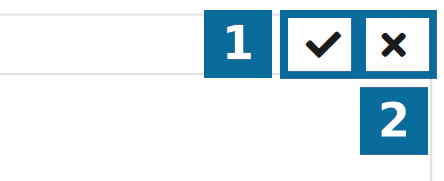
The two buttons in the title bar close the Point Editor:
| Icon | Function |
|---|---|
| Apply the modified reference points and go back to the Main Window | |
| Close the Point Editor and go back to the Main Window (no changes applied) |
Badge 1 marks the first button in the table, badge 2 the second.
Last updated: