On this page
Symbol Editor: Edit Military Symbol Modifiers
The editor to set the attributes and modifiers of military symbols and tactical graphics in symbol.army.
Overview
Open the MSS Symbol Editor with its button in the top-right corner of the Main Window:
The editor has three tabs, selected at the bottom of the window:
| Edit | Set the modifiers and attributes of the symbol |
| Preview | Shows the symbol with its generated names and its position in the symbol hierarchy |
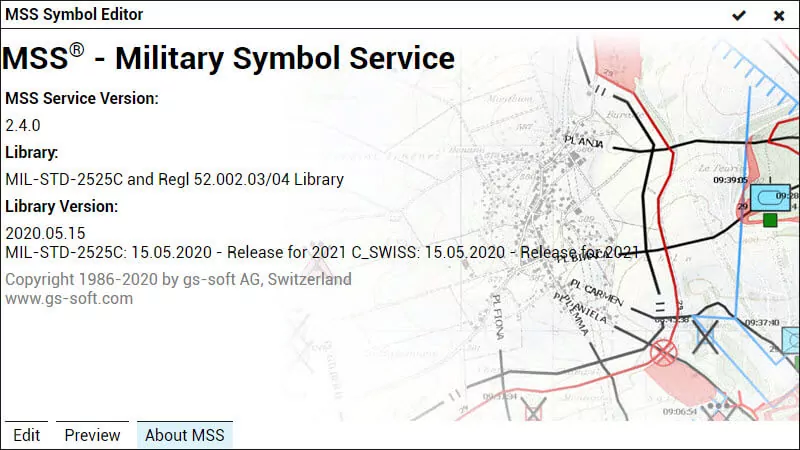
| About MSS | Lists the versions of the MSS Web Service and the MSS Library used by the web application |
Close the editor with the buttons in its title bar: applies the changes to the symbol in the Main Window, discards them.
Edit Tab
Edit is the main tab. It provides everything to customize the symbol, grouped in the menus at the top of the tab. Only the menus and entries the selected symbol supports are shown.
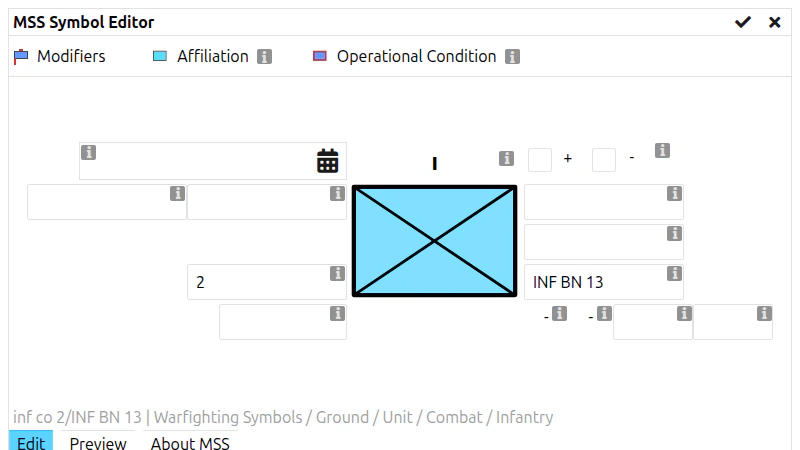
The numbers 1 to 3 in the image mark the menus described in the sections below.
1. Modifiers
The Modifiers menu lists all modifiers the symbol supports. Select or deselect a modifier with a single click. The Symbol Editor follows the definition in MIL-STD-2525 for the position, availability and length of every modifier.
2. Affiliation
The Affiliation menu sets the affiliation of the symbol (friend, hostile, neutral, unknown, …). Select it with a single click:
3. Operational Condition
The Operational Condition menu sets the status of the symbol, such as present, planned, damaged or destroyed. Where the symbol supports it, it also contains the damage status and the radio kill indicator:
4. Text Modifiers
The text modifiers are edited directly in the editor. For a 1-point symbol they are arranged around the symbol, at the position the standard defines for them; for a tactical graphic they are listed next to the graphic. Press the i button of a modifier to read what it is for:
Depending on the modifier, the field is a text, a number, a date and time, a selection list or a colour:
| Field type | How to use it |
|---|---|
| Text | The text is taken over when you press Enter or leave the field. Multi-line fields show the number of characters used and the maximum. |
| Number | Enter a value; Default Value restores the default. |
| Date and time | Pick a date from the calendar; Now inserts the current date and time, Clear empties the field. The display format is set under Symbol Format. |
| Selection | Choose one entry from the list (Select…), or several where the modifier allows it. |
| Colour | Enter a hex value, use the colour picker or one of the frequently used colours; Reset to default color restores the standard colour. |
On a small screen (below 600 pixels width), each modifier opens in its own dialog.
5. Free-Format Options
Some tactical graphics — for example free-form lines and areas — can be styled freely. For these graphics, the Free-Format Options menu offers:
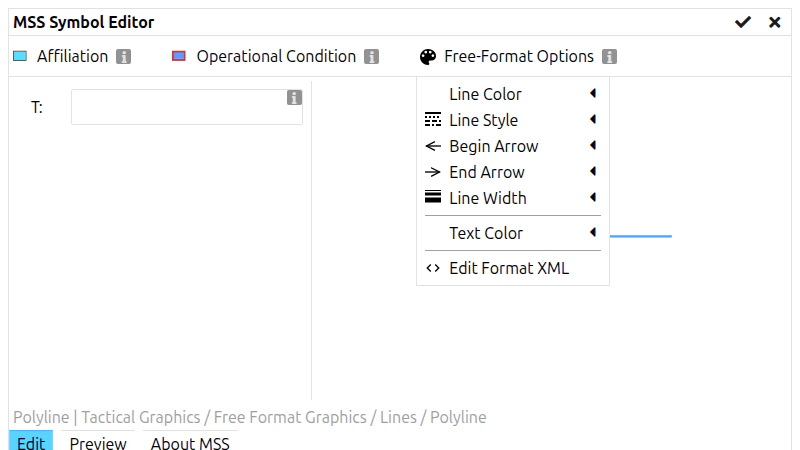
| Group | Options |
|---|---|
| Fill | Fill Color, Fill Style, Fill Transparency |
| Line | Line Color, Line Style, Line Width |
| Arrows | Begin Arrow, End Arrow |
| Text | Text Color, Text Font |
For free text, a text editor with bold, italic, underline, strike-through, font size, alignment and bullet lists is available. Edit Format XML gives direct access to the format definition — for experienced users only.
Preview Tab
This tab shows a preview of the Military Symbol together with additional information.
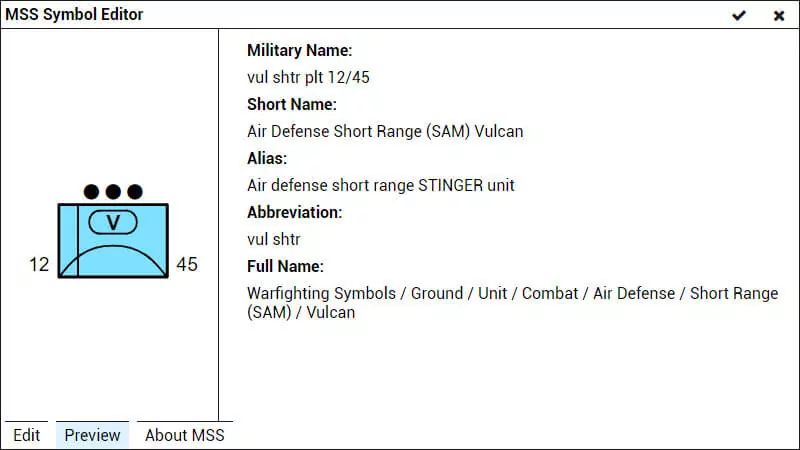
The symbol is displayed on the left side, the dynamically generated names on the right side:
| Military Name | Generated abbreviation of the military symbol, including its modifiers |
| Short Name | Name of the Base Symbol according to the symbology standard |
| Alias | Other names or equipment name of the symbol |
| Abbreviation | Abbreviation of the Base Symbol according to the symbology standard |
| Full Name | Full hierarchy name according to MIL-STD-2525 |
About MSS Tab
This tab shows the versions of the components that render the symbols: MSS Service Version, MSS Component Version, Library and Library Version. Please include this information when you report a problem.
Last updated: