On this page
Reset or Remove a Military Symbol
How to clear the Military Symbol in the Main Window of symbol.army and start again from scratch.
Delete Symbol
Press the Delete Symbol button in the footer of the Main Window:
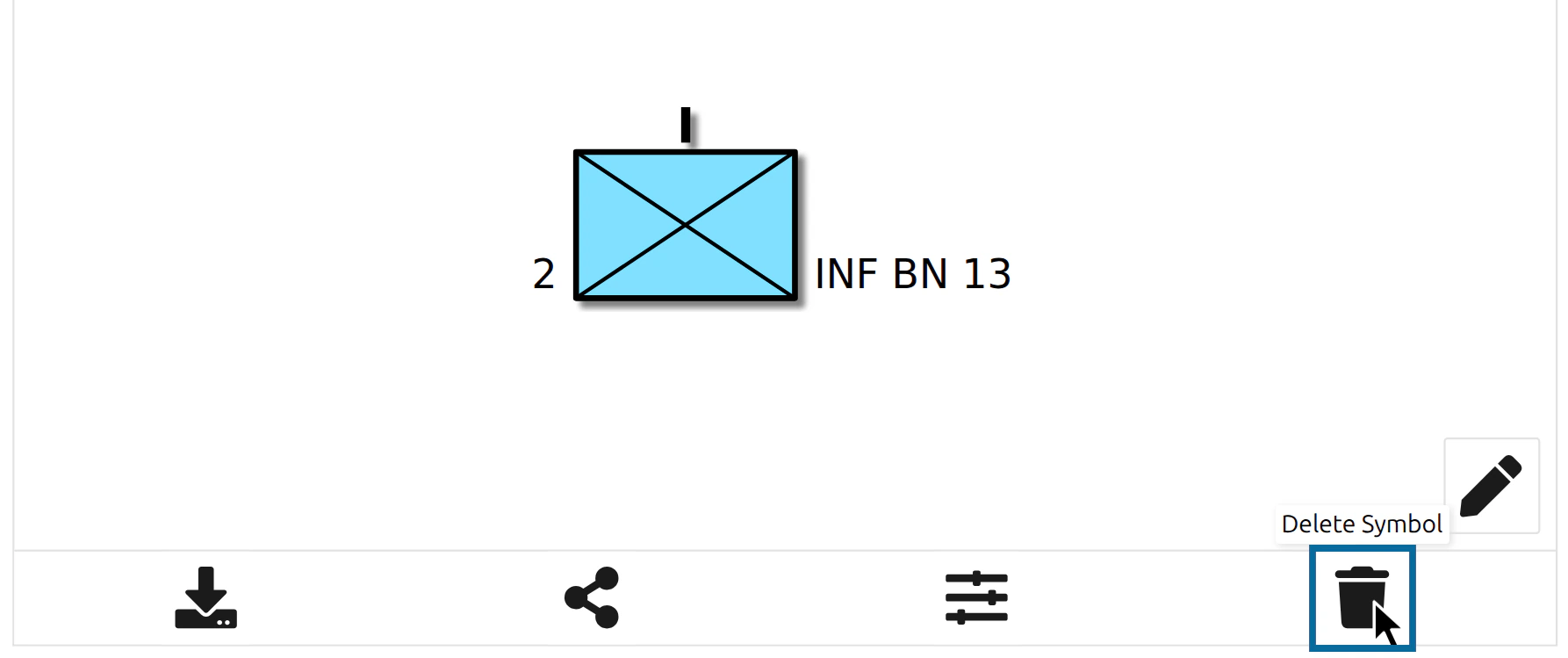
The Main Window is reset at once to the default symbol — an empty friendly ground unit (SIDC SFGPU---------G). Everything you set on the previous symbol is removed:
- the Base Symbol,
- all attributes and modifiers,
- the reference points of a tactical graphic.

The settings under Options (language, Work Mode, symbol format and export format) are not affected.
When to Use Delete Symbol
Use it when you want a clean start: all attributes, modifiers and reference points of the old symbol are gone, and you do not have to remove them one by one.
It is also the quickest way to leave a tactical graphic. The default symbol is a 1-point unit again, so the points you placed for the graphic are gone.
How to Start a New Symbol Without Deleting
You do not need to delete a symbol before you create a new one. Selecting a new Base Symbol in the Symbol Search replaces the current symbol as well.
How to Keep the Old Symbol
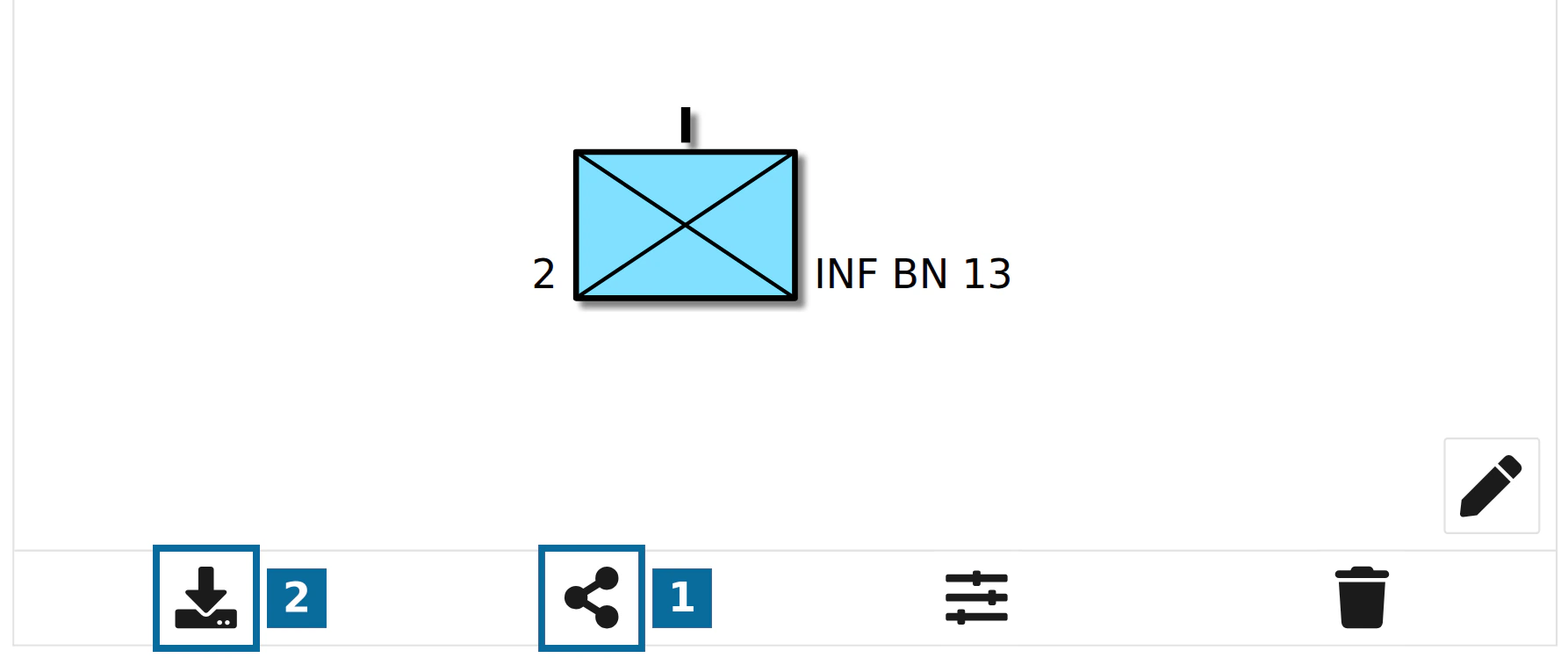
symbol.army does not store symbols for you. To be able to come back to a symbol, save it before you press Delete Symbol:
- Press Share Symbol via URL and paste the link into a document or a bookmark. The link can be opened later and the symbol can be edited further.
- Or press Download Symbol as Image File to get a picture of it. An image cannot be opened in symbol.army again.
The numbers in the picture match the steps.
Related
Last updated: