On this page
Search Military Symbol
Every military symbol in symbol.army starts with a Base Symbol. The MSS Symbol Search finds it by name, across all units, equipment, installations and tactical graphics of the active Work Mode.
Open the Search
Click the magnifier button in the top-left corner of the Main Window:
Search for a Symbol
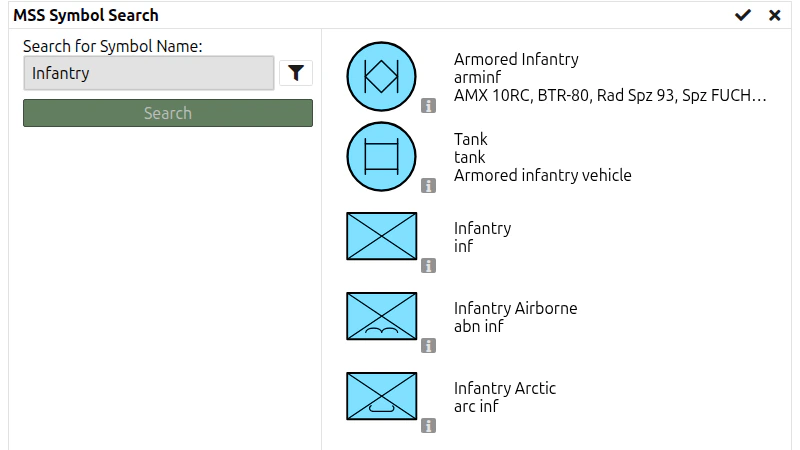
- Type the name of the symbol into the field Search for Symbol Name. Use the name as defined in the symbology standard, for example Infantry, Armour or Phase Line.
- Press Search or the Enter key.
- The results are listed below the field. Each row shows the symbol, its name and an icon — move the pointer over the icon to see the details of the symbol.
- Click a row to select the symbol.
- Close the search with one of the two buttons in the title bar:
Icon Function Apply the selected symbol and go back to the Main Window Go back to the Main Window without changing the symbol
Hint: Applying a new symbol replaces the current one. The modifiers, attributes and reference points of the previous symbol are not carried over. If you need the previous symbol again, share it via URL before you search for a new one.
Filter Settings
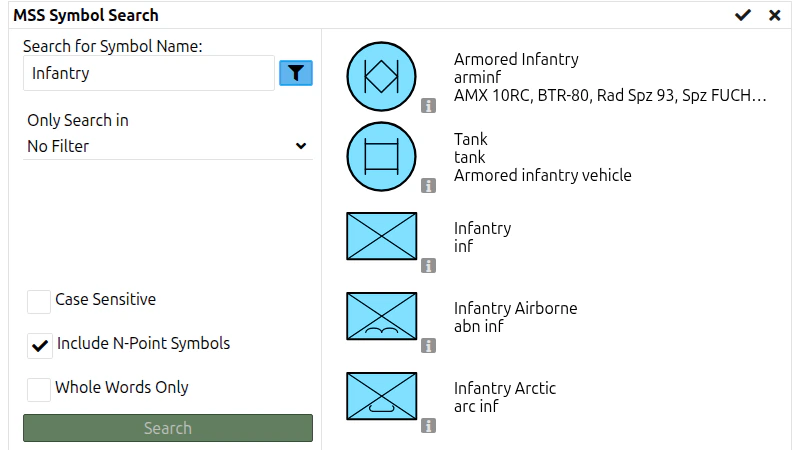
Click the filter button next to the search field to narrow the search:
| Setting | Default | Effect |
|---|---|---|
| Only Search in | No Filter | Restricts the search to one branch of the symbol hierarchy. The list depends on the Work Mode and the application language. |
| Case Sensitive | Off | Upper and lower case must match exactly. |
| Whole Words Only | Off | Finds only symbols whose name contains the search text as a complete word — Air no longer finds Airborne. |
| Include N-Point Symbols | On | Includes tactical graphics (symbols with more than one reference point). Switch it off to search 1-point symbols only. |
Tips
- The search uses the symbol names of the application language. Switch the language under General Options to search with German, French or Italian names.
- Swiss country-specific symbols are only found in the Extended Work Mode.
- If you know the SIDC of a symbol, you can skip the search and load the symbol directly via URL.
- A search can also be started from a link:
https://www.symbol.army/?searchText=Infantryopens the search with the results for Infantry.