On this page
Create Military Symbols via URL Parameter
symbol.army can be opened with a symbol already loaded: put the SIDC (Symbol ID Code) of the symbol into the URL. This is useful for links in documents, web pages and other applications.
Instructions
Follow these steps to open a military symbol in symbol.army with a URL parameter.
Find the SIDC of the symbol in the MIL‑STD‑2525C standard. The full list is available here: List of MIL‑STD‑2525C symbols. Use upper-case letters.
Add the SIDC as the only URL parameter of www.symbol.army, in the following format:
https://www.symbol.army/?SIDC=<SIDC>Example:
https://www.symbol.army/?SIDC=S-G-UCI--------Set the affiliation (position 2 of the SIDC). Definitions per TABLE A‑I of the MIL‑STD‑2525C standard:
ID Description - NULL P PENDING U UNKNOWN A ASSUMED FRIEND F FRIEND N NEUTRAL S SUSPECT H HOSTILE G EXERCISE PENDING W EXERCISE UNKNOWN M EXERCISE ASSUMED FRIEND D EXERCISE FRIEND L EXERCISE NEUTRAL J JOKER K FAKER Example (neutral):
https://www.symbol.army/?SIDC=SNG-UCI--------Set the status/operational condition (position 4 of the SIDC) per TABLE A‑I. SIDC positions and categories:
ID DESCRIPTION A ANTICIPATED/PLANNED P PRESENT (Units only) D DAMAGED X DESTROYED symbol.army supports these four status values. The codes C (present/fully capable) and F (present/full to capacity) of MIL-STD-2525C are not supported.
Example (damaged):
https://www.symbol.army/?SIDC=SFGDUCI--------Set the echelon (position 12 of the SIDC) per TABLE V. Echelon indicator:
ID DESCRIPTION - NULL A TEAM/CREW B SQUAD C SECTION D PLATOON/DETACHMENT E COMPANY/BATTERY/TROOP F BATTALION/SQUADRON G REGIMENT/GROUP H BRIGADE I DIVISION J CORPS K ARMY L ARMY GROUP/FRONT M REGION Example (platoon):
https://www.symbol.army/?SIDC=SFGPUCI----D---

METOC symbols do not support echelon → set SIDC position 12 to '-'.
Formatting cannot be set this way. Use the Options menu in the application.
Rules for the SIDC Parameter
- The SIDC is only taken over if it is the only parameter in the URL. With a second parameter in the URL, the SIDC is ignored.
- The name of the parameter does not matter:
?SIDC=…,?id=…and?symbol=…all work. - A SIDC shorter than 15 characters is filled up with
-; a longer one is cut to 15 characters.
Open the Search via URL
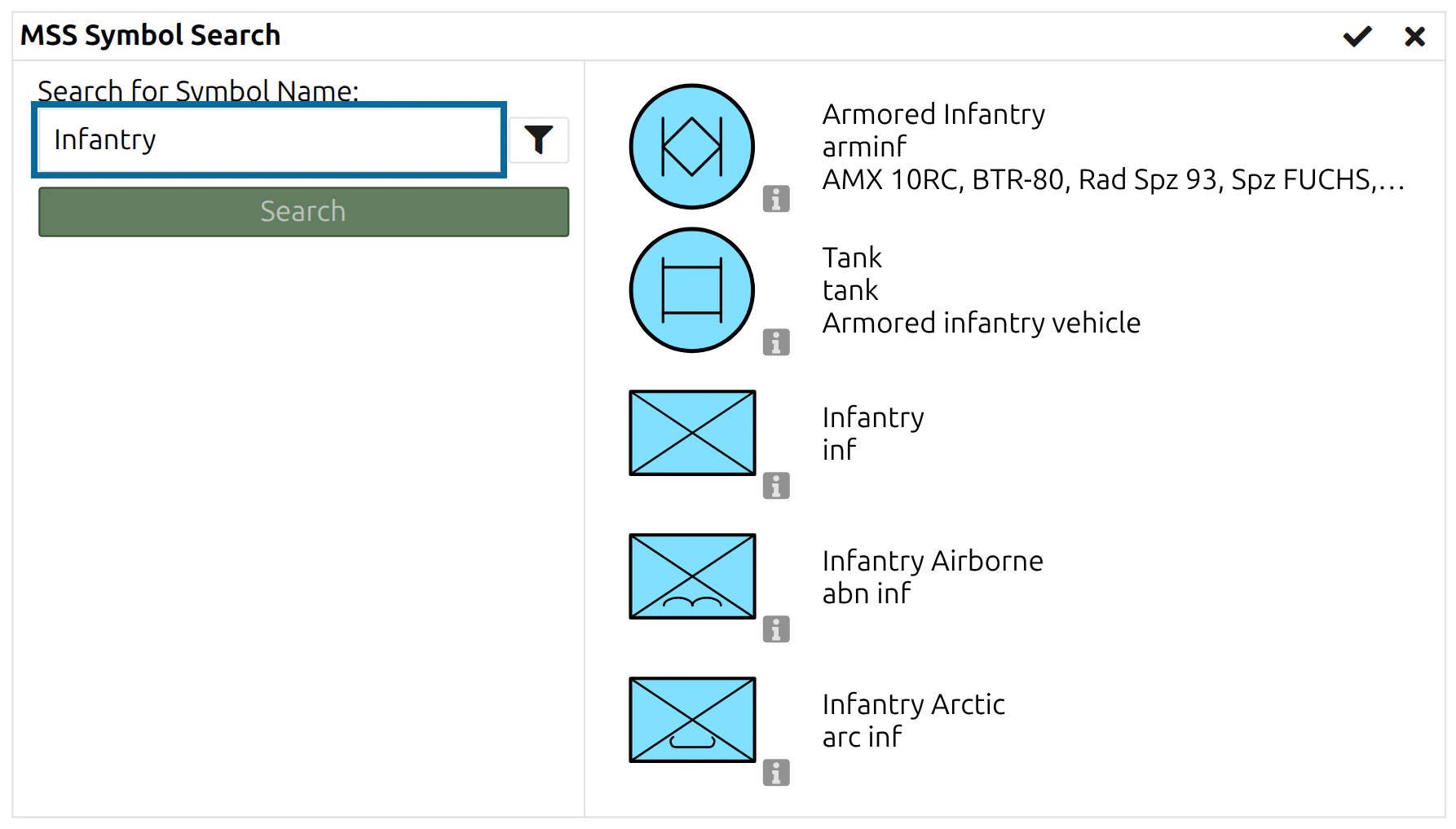
The parameter searchText opens the Symbol Search with the results already listed:
https://www.symbol.army/?searchText=Infantry
The search text is compared with the symbol names in the app language. With the app in German or French, use ?searchText=Infanterie; in Italian, ?searchText=Fanteria.
Parameters of a Shared Link
A link created with Share Symbol via URL carries the complete symbol, including its modifiers and format. It uses the following parameters. You do not need to write them by hand — create the symbol in symbol.army and share it — but they can be generated by other applications:
| Parameter | Value |
|---|---|
mssStringXml | The symbol as MSS XML, e.g. <Symbol ID="SFGPU---------G"/>, with <Attribute> elements for the modifiers. Taken over only together with mssNPoint. |
mssNPoint | true for a tactical graphic (more than one reference point), false for a 1-point symbol. |
mssGeometry | Optional. The reference points of a tactical graphic, as JSON. |
symbolFormat | The symbol format as JSON. Merged into the reader’s settings. |
All values must be URL-encoded where required by the browser or the application that generates the link.
Last updated: