On this page
Export Format Options: SVG, PNG, EMF, JPEG
The settings for downloading symbols and graphics from symbol.army: file format and size.
Overview
The Export Format section of the Options defines what Download Symbol as Image File produces.
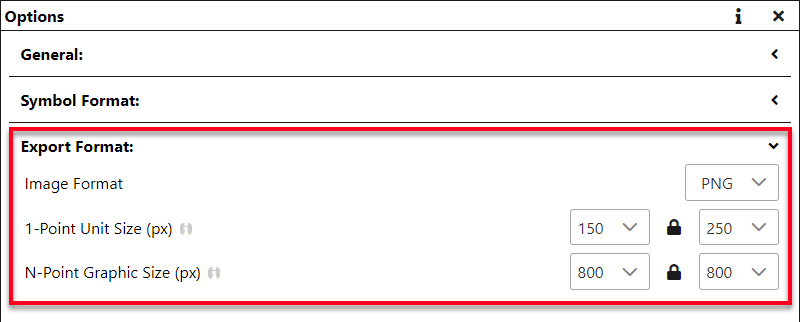
How to change the export format
Open the Options .
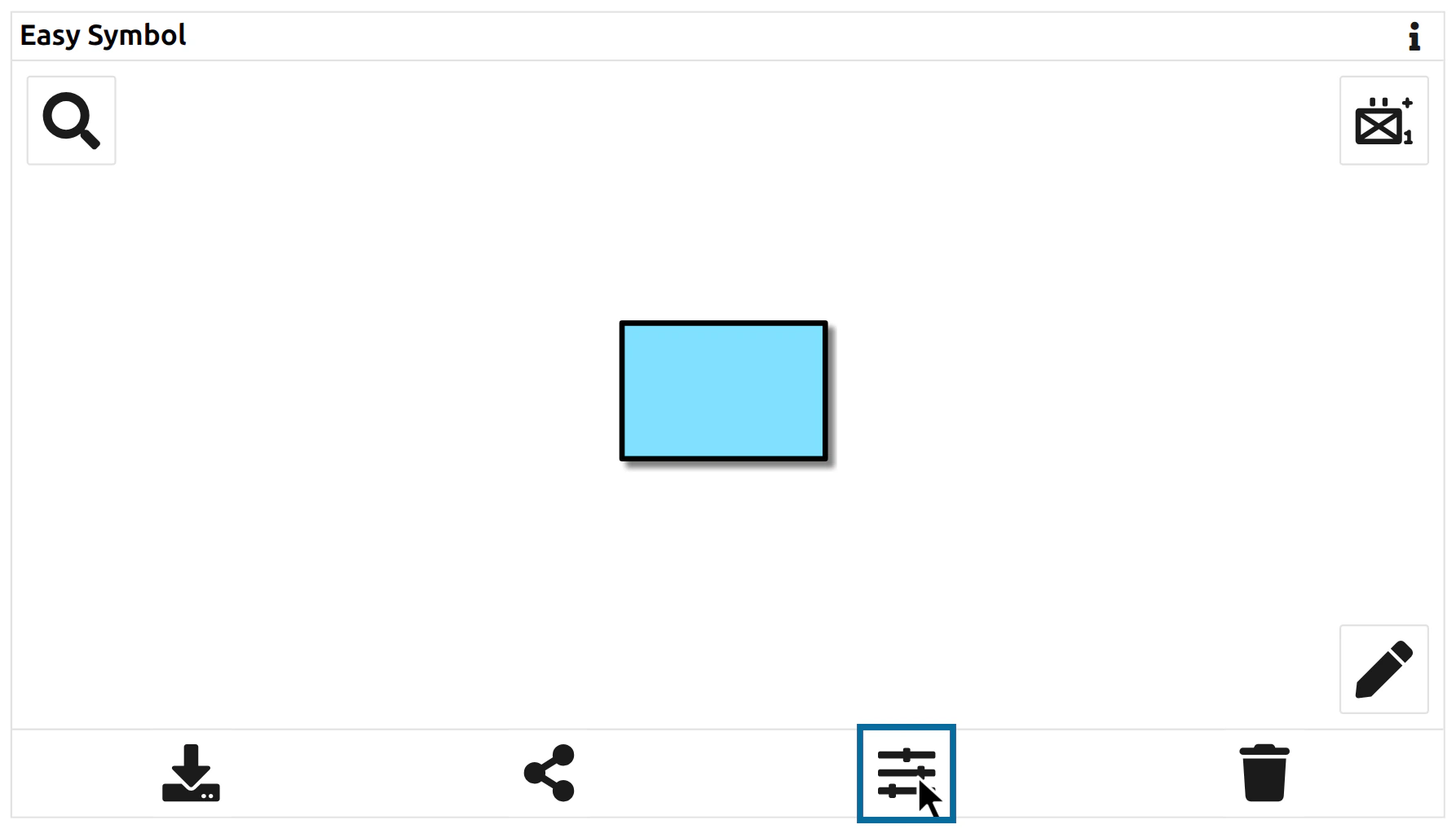
Go to the Export Format section.

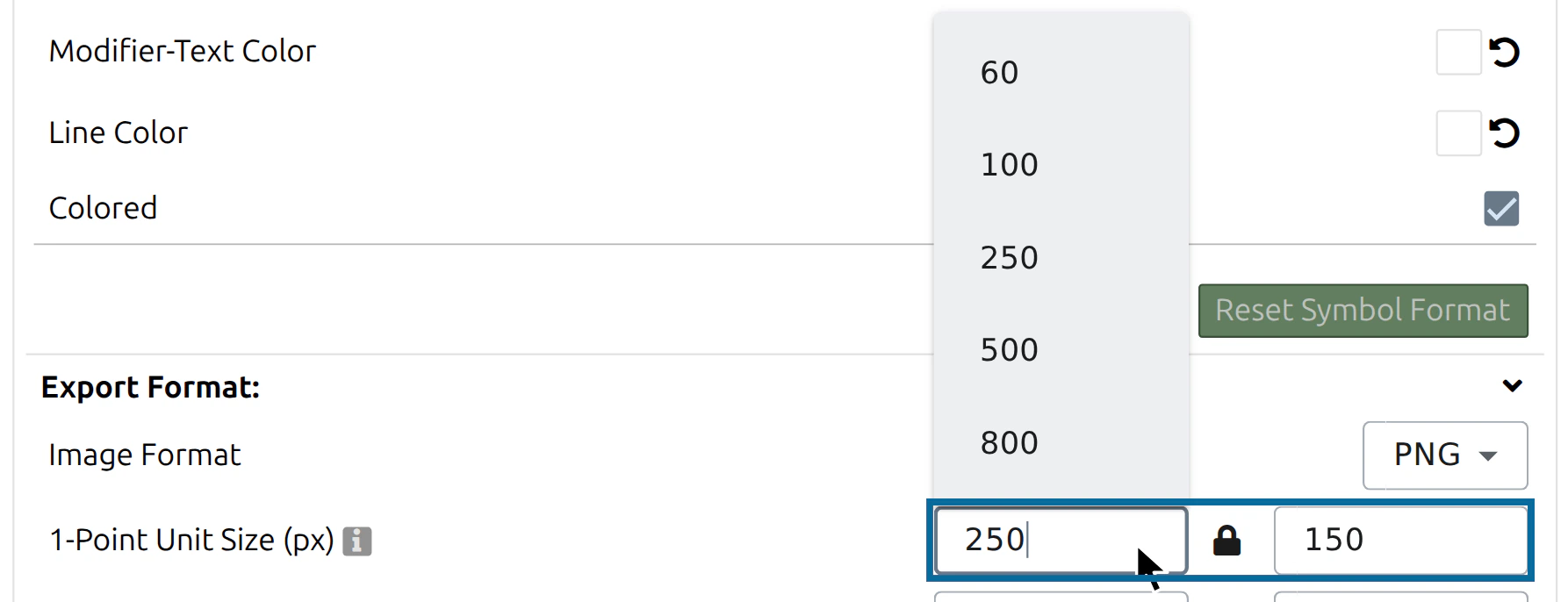
Select the Image Format, then set the 1-Point Unit Size and the N-Point Graphic Size.
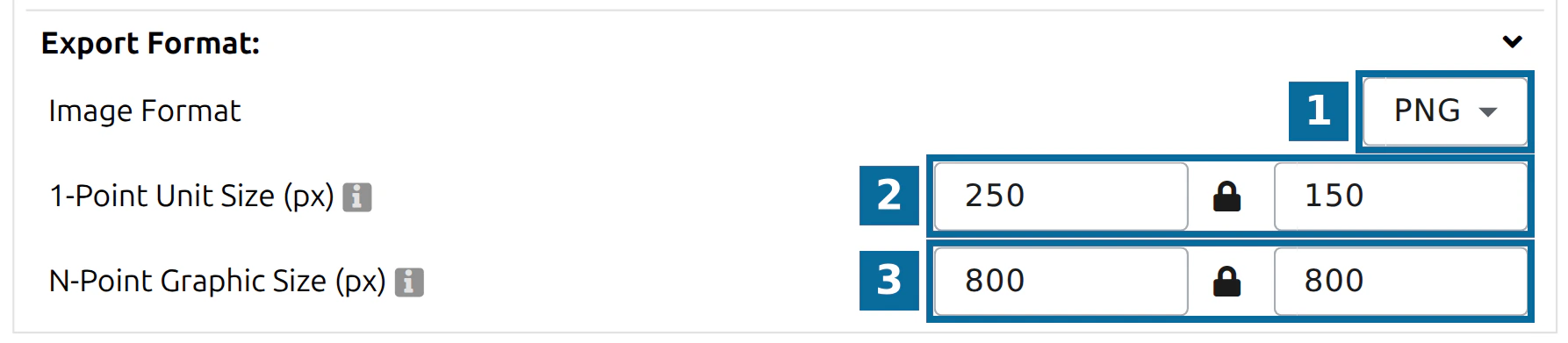
The numbers 1, 2 and 3 in the picture mark these three settings in this order.
Close the Options and press Download Symbol as Image File.
The settings are remembered for your next visit.
Image Format
The default format is PNG. The following formats are available:
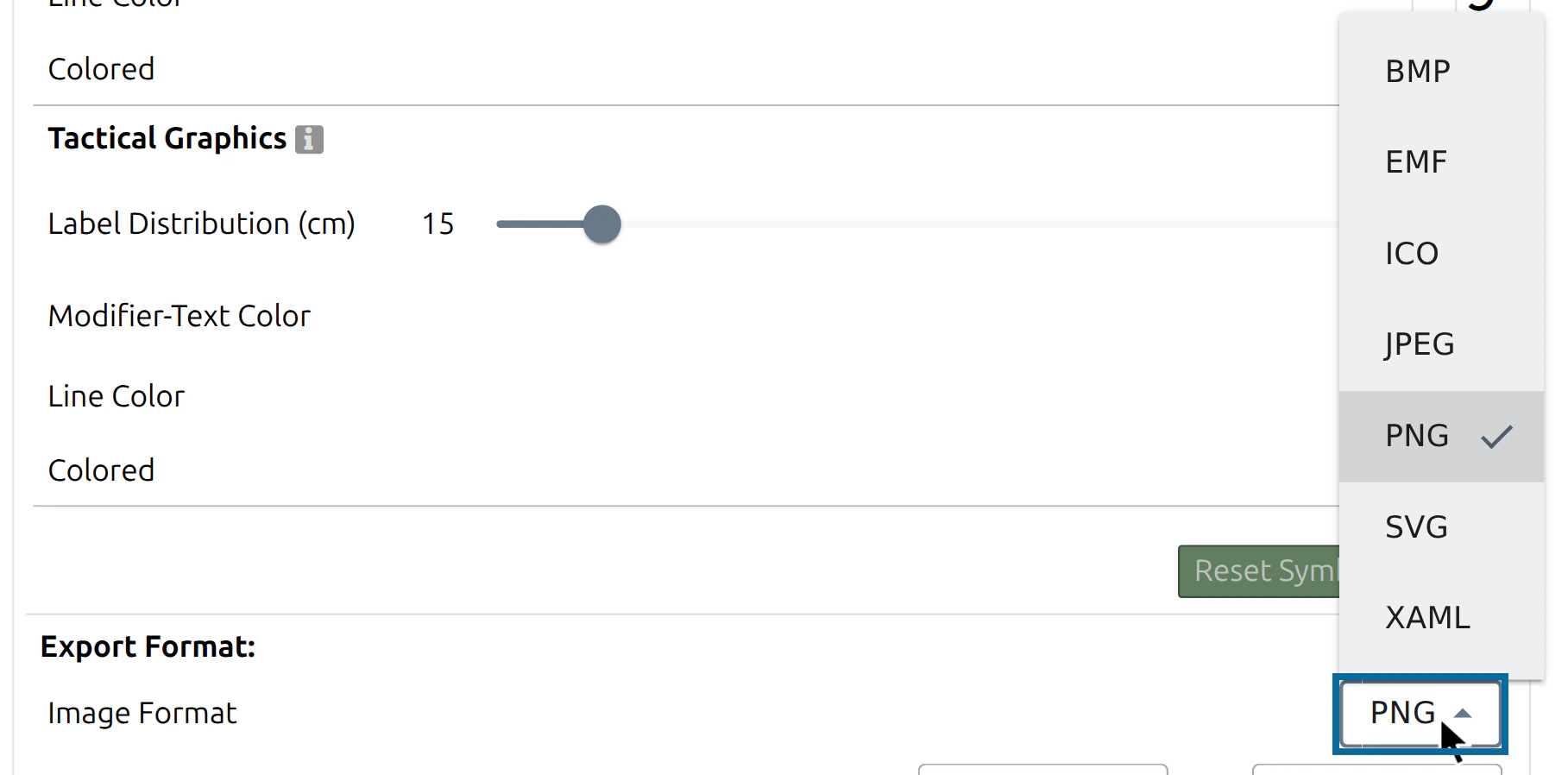
Vector Formats
- SVG (Scalable Vector Graphics)
- EMF (Windows Enhanced Metafile)
- XAML (Extensible Application Markup Language)
Pixel Formats
- PNG (Portable Network Graphics)
- JPEG (Joint Photographic Experts Group)
- BMP (Windows Bitmap)
- ICO (Windows Icon)
Which format to choose
- For Word, PowerPoint and print, use a vector format. It stays sharp when you enlarge it. The Download Symbol as Image File page tells which vector format suits which application.
- For web pages, e-mail and quick use, PNG is the best choice.
- Use ICO only for Windows icons and BMP only for older Windows programs.
The downloaded file is named mss-symbol followed by the extension of the format, for example mss-symbol.svg.
Pixel images are rendered at 96 DPI without compression. There is no separate setting for the resolution, the background or a frame — frame, fill, shadow and colours come from the Symbol Format.
1-Point Unit Size
Width and height in pixels for 1-point symbols (units, equipment, installations). The default is 250 × 150 pixels (width × height); the maximum is 2000 pixels per side. Presets: 60, 100, 250, 500 and 800 pixels.
The symbol is fitted into this box. While the lock icon is closed, changing the width changes the height proportionally, and vice versa.
N-Point Graphic Size
The same for tactical graphics (symbols with more than one reference point). The default is 800 × 800 pixels; the maximum is 2000 pixels per side. The graphic is fitted into the box and keeps its proportions.

Size limits and tips
- Each side is limited to 2000 pixels. A larger value is reduced to 2000.
- The lock ratio keeps the proportions of the symbol box when you change one side. Open the lock to enter width and height independently.
- A symbol that does not fill the box is fitted into it, so the box can leave empty space.
- The size for 1-point symbols is used for units, equipment and installations; tactical graphics use the N-Point Graphic Size.

When the Display Image Format is “Raster Graphic (PNG)”, the Main Window also shows the symbol in this size. See General Options and Copy/Paste Military Symbol.
Related
Last updated: